 Nock-Nock
Everything from installing Nock-Nock on your phone to the final result of a match. Each screenshot has numbered spots; the matching note says in one line what that part does. Tap or hover a note to light up its spot.
Install the app
Nock-Nock runs in your browser, so there's no app store. Add it to your home screen once and it opens full screen with its own icon, like any other app.
Android
- Open artemis-archery.pro/app in Chrome.
- Tap the menu at the top right.
- Tap Add to home screen, then Install. Chrome may also offer Install app straight away.
- Open Nock-Nock from the new icon on your home screen.
Samsung Internet: menu → Add page to → Home screen.
iPhone and iPad
- Open artemis-archery.pro/app in Safari.
- Tap Share . Don't see it? On iOS 26 tap first, then Share.
- Scroll down and tap Add to Home Screen .
- Tap Add. Nock-Nock is now on your home screen.
Safari works best for this; other browsers on iPhone may not offer it.
Installed? The icon opens straight into the app. New versions arrive by themselves: when one is ready, the app shows an Update button.
Claim your name
The first time you open the app you claim a name. No email, no password.
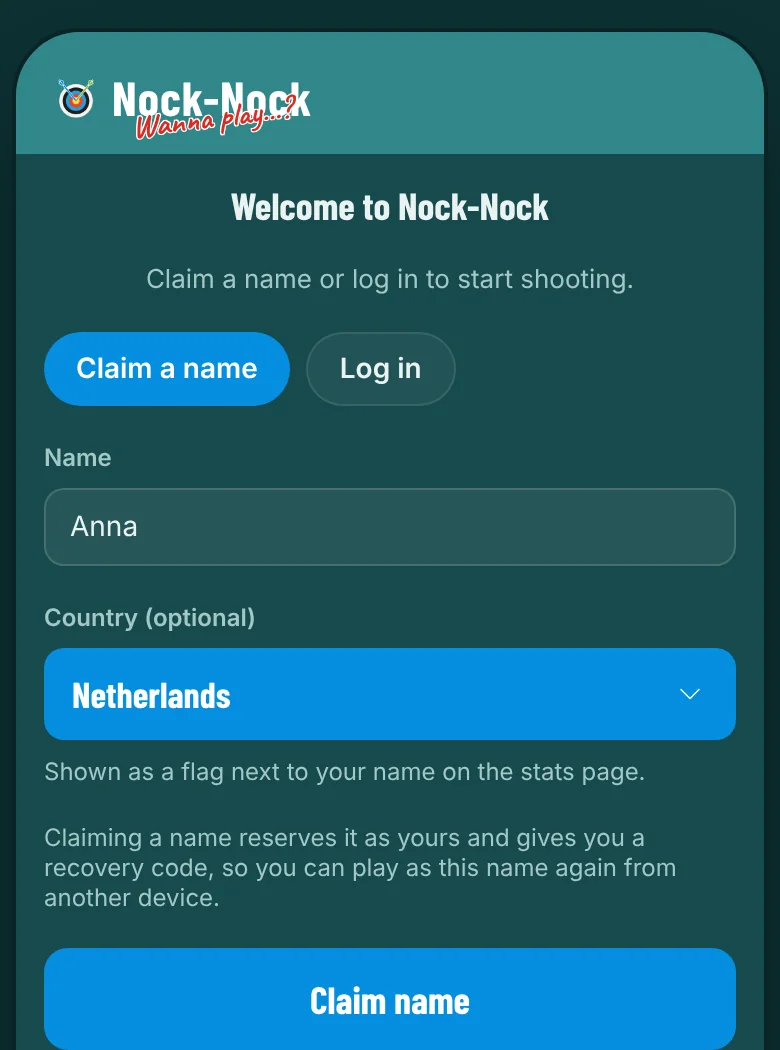
- 1New here? Claim a name. Played before on another device? Tap Log in.
- 2The name your opponents and the stats page will see.
- 3Optional: shown as a small flag next to your name on the stats page.
- 4Reserves the name for you and gives you a recovery code.
Save your recovery code
Right after claiming, you get a code that lets you use the same name on another phone.
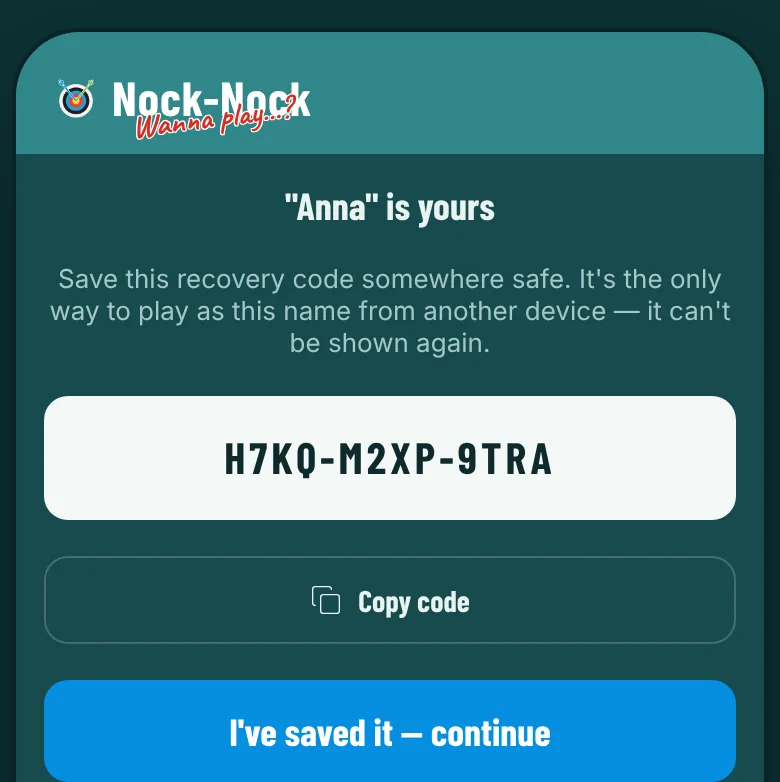
- 1Your recovery code: the only way to play as this name on another phone.
- 2Copies the code, so you can paste it into your notes or password manager.
- 3Tap once the code is stored safely. It is never shown again.
Set up a match
Everything starts here: pick your bow and distance, then invite someone, find a random opponent or join with a code.
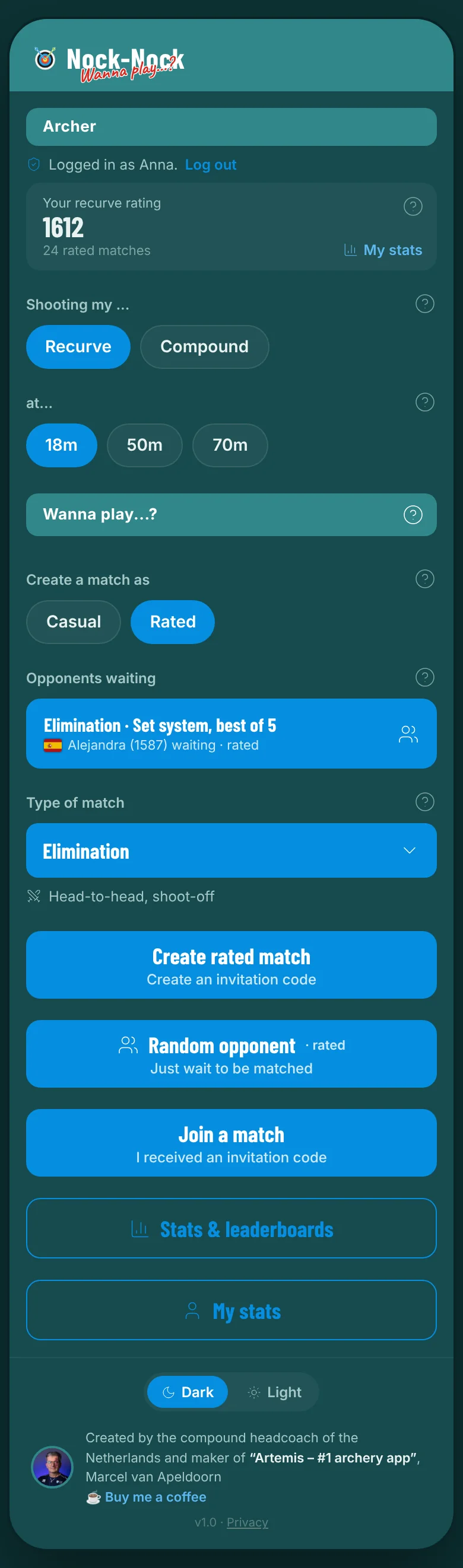
- 1The account you play as. Tap Log out to switch accounts.
- 2Your rating for the chosen bow. It starts at 1500 and moves with every rated match.
- 3Your personal stats page: averages, groups and heat maps per distance.
- 4Pick your bow. Recurve and compound each have their own rating.
- 5Pick the distance you're shooting today.
- 6Every (?) opens a short explanation of that part of the screen.
- 7Casual for fun, or Rated to put your rating on the line.
- 8Archers searching right now. Tap one to start a rated match straight away.
- 9The type of match: scoring, elimination, shoot-off or show-down.
- 10Creates an invitation code to send to an archer you know.
- 11Nobody to invite? Get paired with an archer of a similar rating.
- 12Received a code? Enter it here to join that match.
- 13Everyone's ratings, high scores and recent matches.
- 14Switch the app between dark and light.
Join with a code
Got an invite? Tap the link, or enter the code under Join a match. You see what you're joining before you tap.
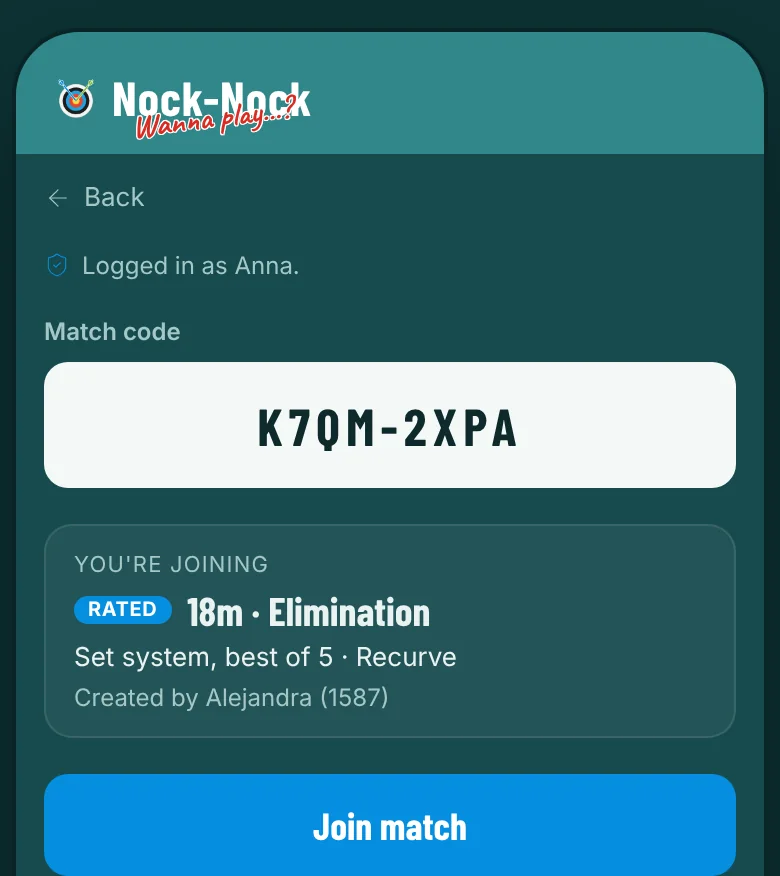
- 1Back to the setup screen.
- 2Type or paste the code. Opening an invite link fills it in for you.
- 3What you're about to join: rated or casual, distance, match type and who made it.
- 4Counts for your rating. If it will be played as casual, a separate warning shows here.
- 5Joins the match: you both start straight away.
Invite an opponent
After Create match you get a code to share. Your opponent joins from wherever they shoot.
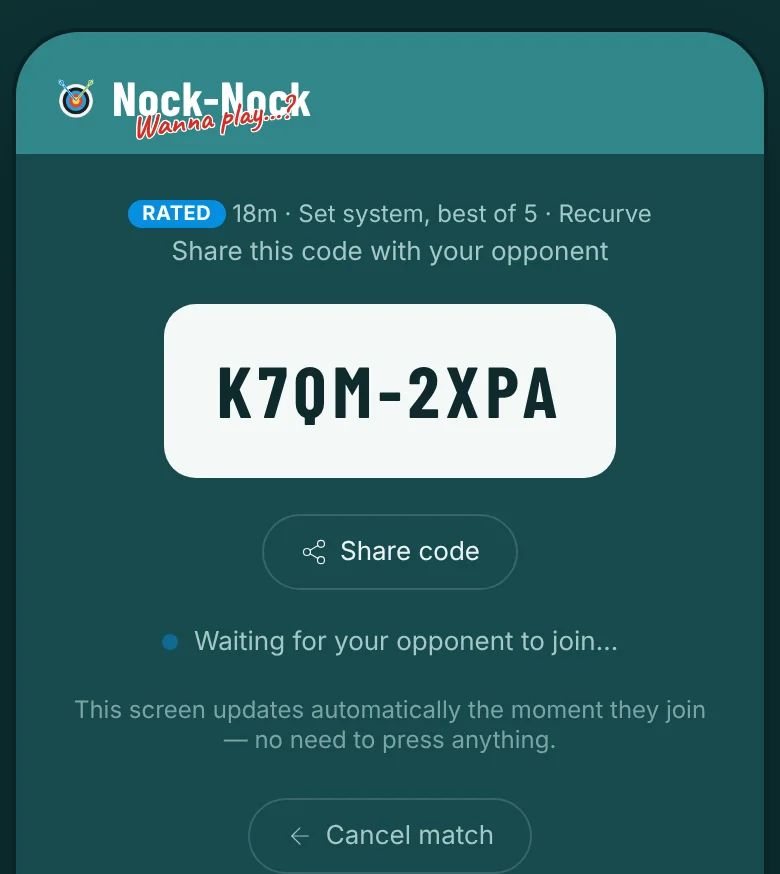
- 1The match you created, as your opponent will see it.
- 2Your match code.
- 3Send it by WhatsApp or any app. The message includes a join link.
- 4Keep this screen open: it switches to the match the moment they join.
- 5Changed your mind? Cancels the match and its code.
Find a random opponent
No one to invite? Random opponent looks for an archer of your level who wants the same match.
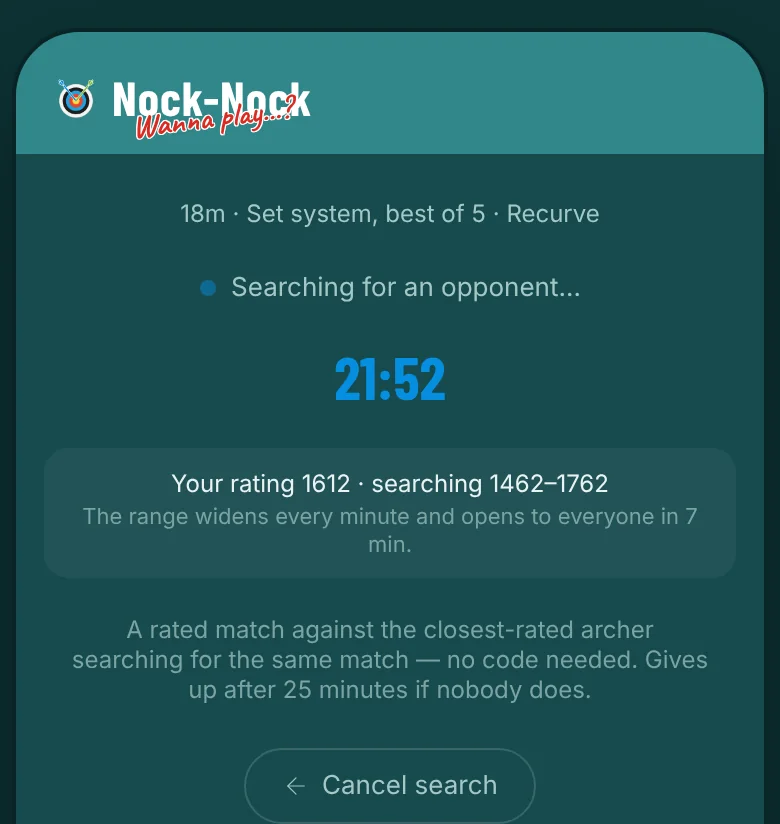
- 1Looking for an archer who wants the same match, rated.
- 2Time left. The search stops after 25 minutes if nobody turns up.
- 3Starts close to your rating; the range widens every minute until it's open to all.
- 4Stop searching and go back to setup.
The match starts
As soon as your opponent is in, both phones get a start signal.
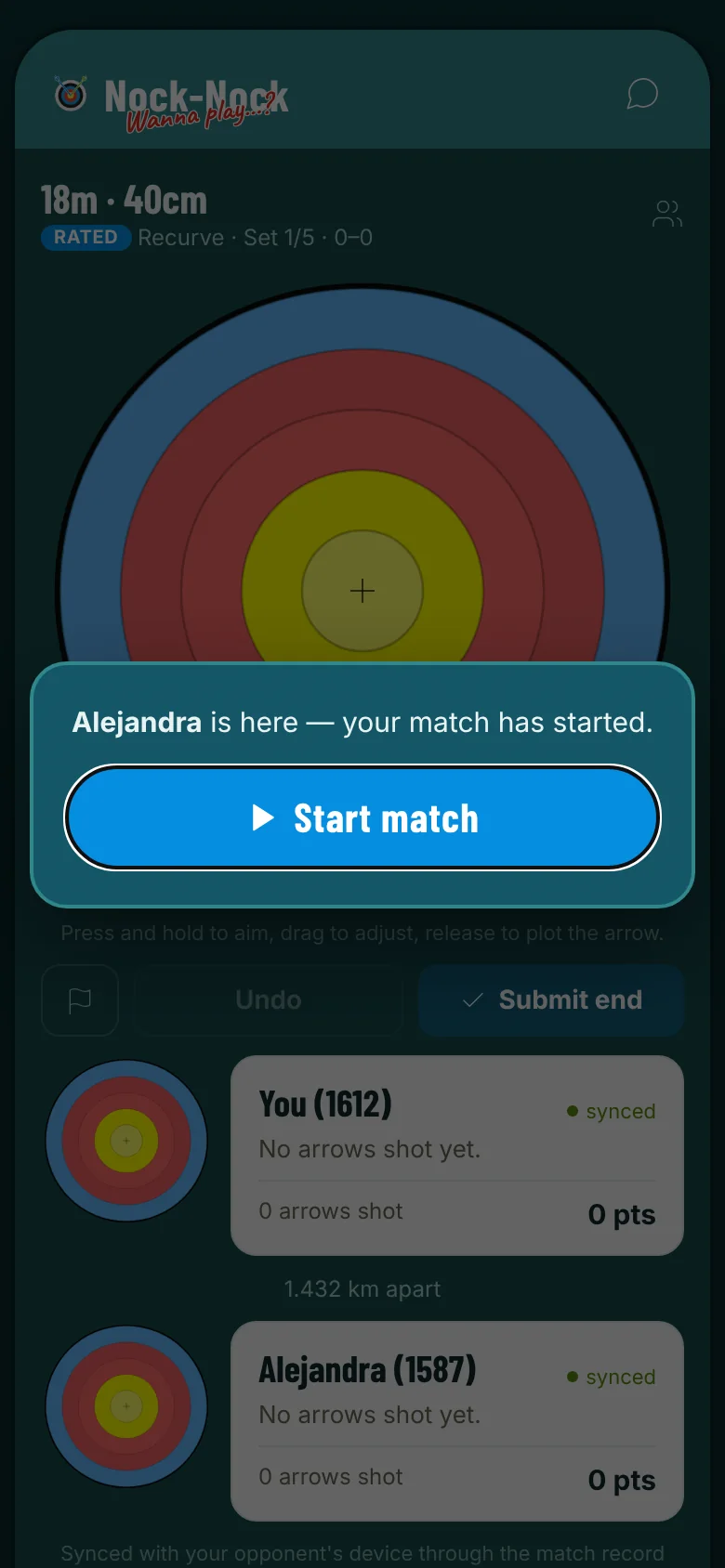
- 1Your opponent is here. Both phones beep until you tap Start match.
- 2Tap to begin. The screen behind stays locked until you do.
Score your arrows
Shoot your end, then plot each arrow where it landed. Both scorecards stay in sync.
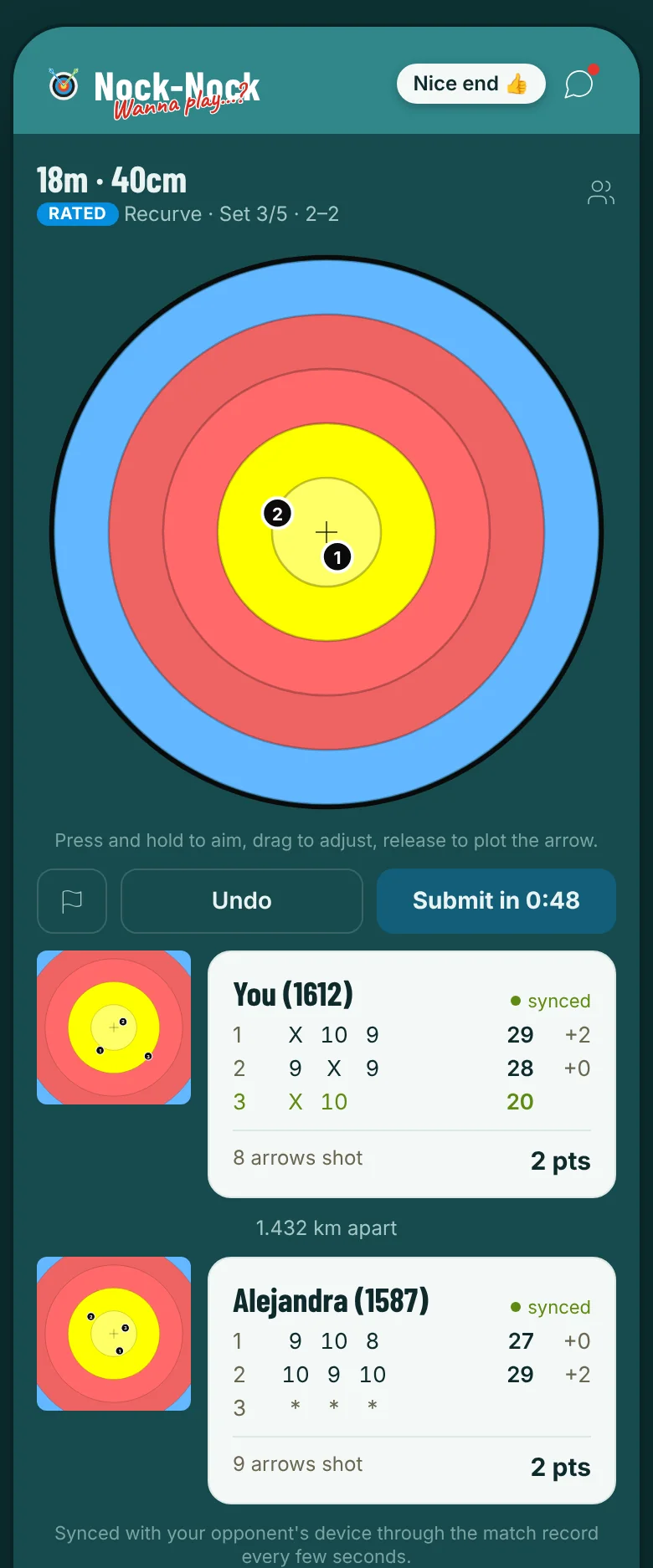
- 1A new chat message. Tap it to read and reply.
- 2Opens the chat. A red dot means there's an unread message.
- 3Distance and target face.
- 4Rated or casual, your bow, the set you're on and the set score.
- 5Press and hold where your arrow landed, drag to fine-tune, release to plot it.
- 6Plotted arrows, numbered in the order you shot them.
- 7Forfeit the match. It asks you to confirm first.
- 8Removes the last arrow you plotted.
- 9Sends your end. The countdown leaves 20 s per arrow + 30 s to fetch them.
- 10Your last end, zoomed in.
- 11Your scorecard: arrows, end totals and set points. The end you're shooting is green.
- 12Green dot: your scorecard is in sync with your opponent's phone.
- 13How far apart you are, when both phones share their location.
- 14Rated: an end your opponent shot ahead of you shows as stars until yours is in.
Aim with the loupe
Press and hold on the target to place an arrow precisely.
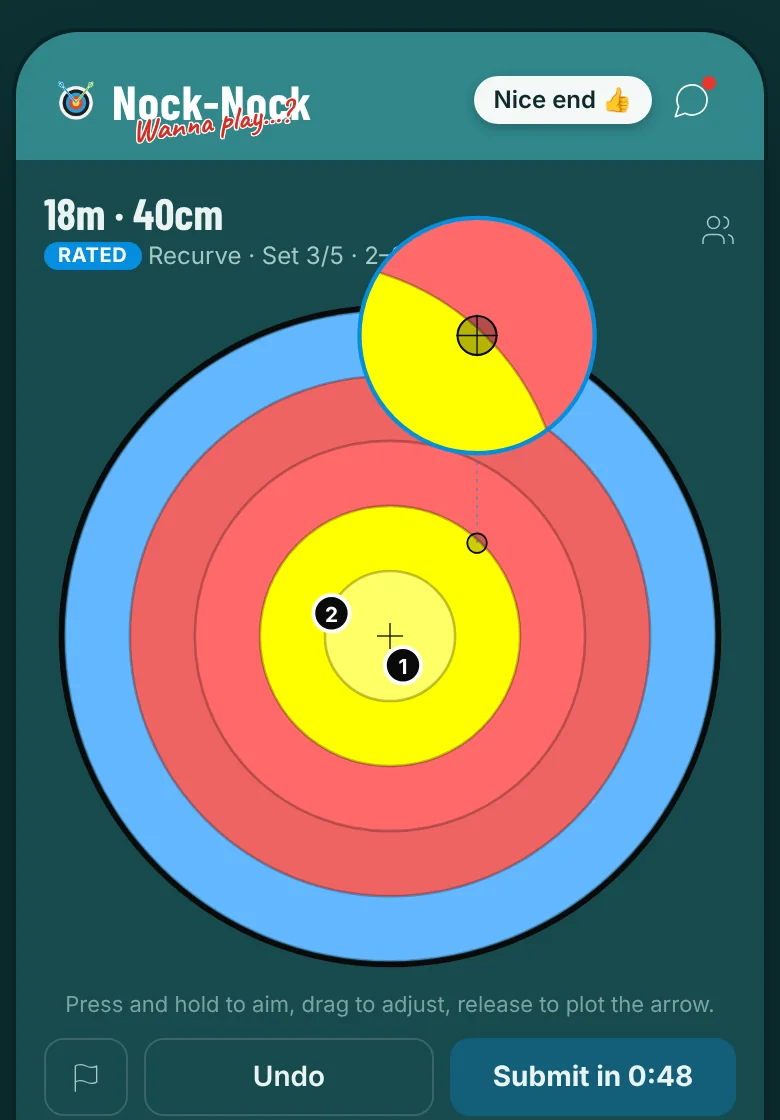
- 1While you hold, the loupe magnifies the spot under your finger.
- 2Your finger. The loupe swings aside so it never hides the target.
Waiting for your opponent
In elimination and show-down matches you shoot end by end, so sometimes you wait.
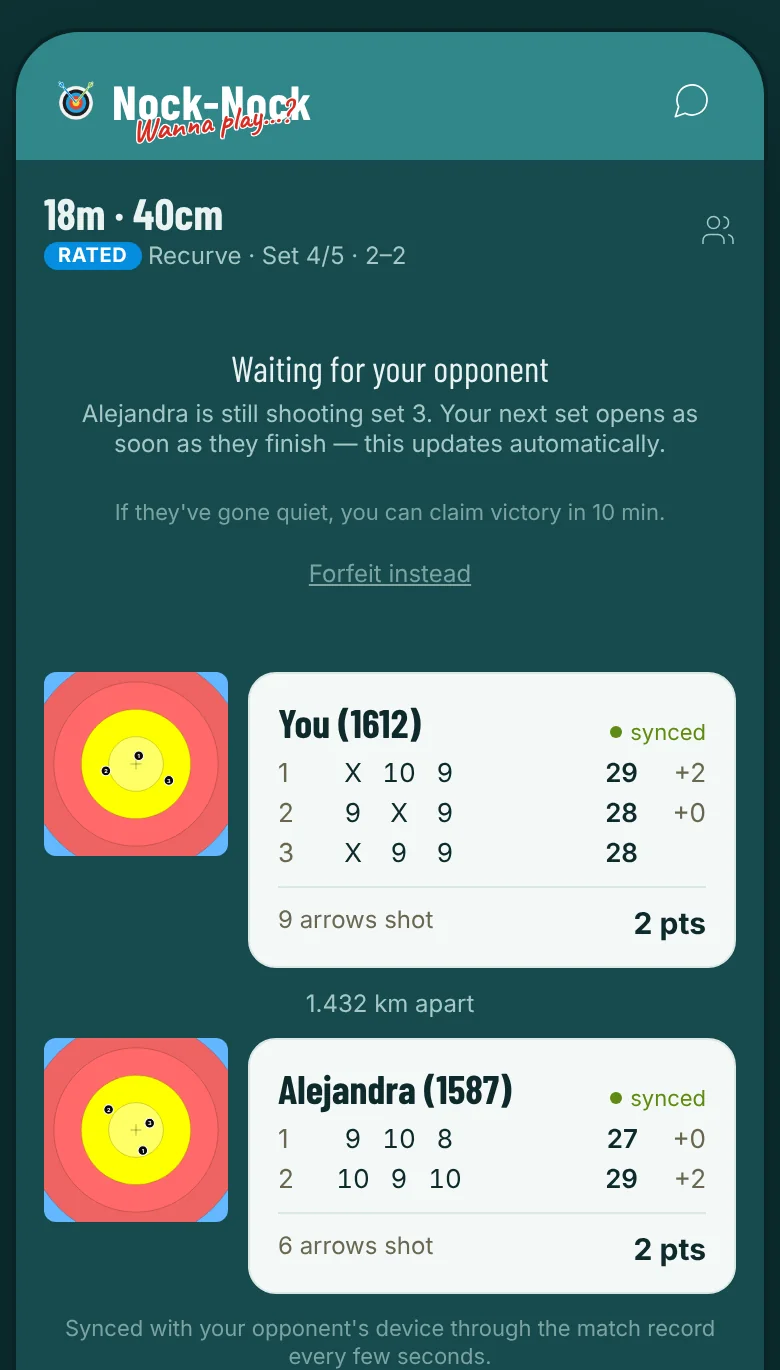
- 1Head-to-head goes end by end: your next end opens once they've shot theirs.
- 2Opponent gone quiet for 10 minutes? You can claim the win.
- 3Or give up the match from here.
Chat
Open the chat from the header at any moment of the match.
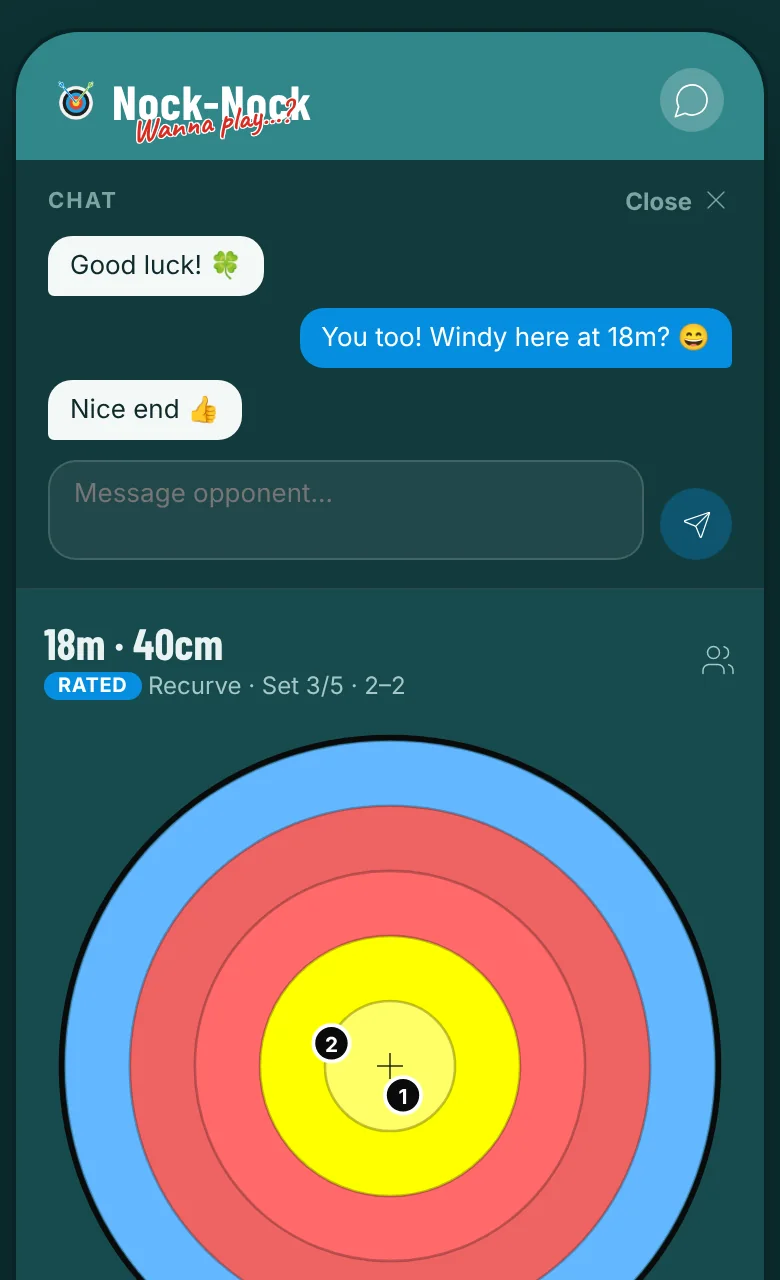
- 1Your opponent's messages on the left, yours on the right.
- 2Say hello, cheer a good end, swap a tip.
- 3Sends the message.
- 4Closes the chat. The chat button in the header opens it again.
Shoot-off
Level after the last end? One arrow each decides it.
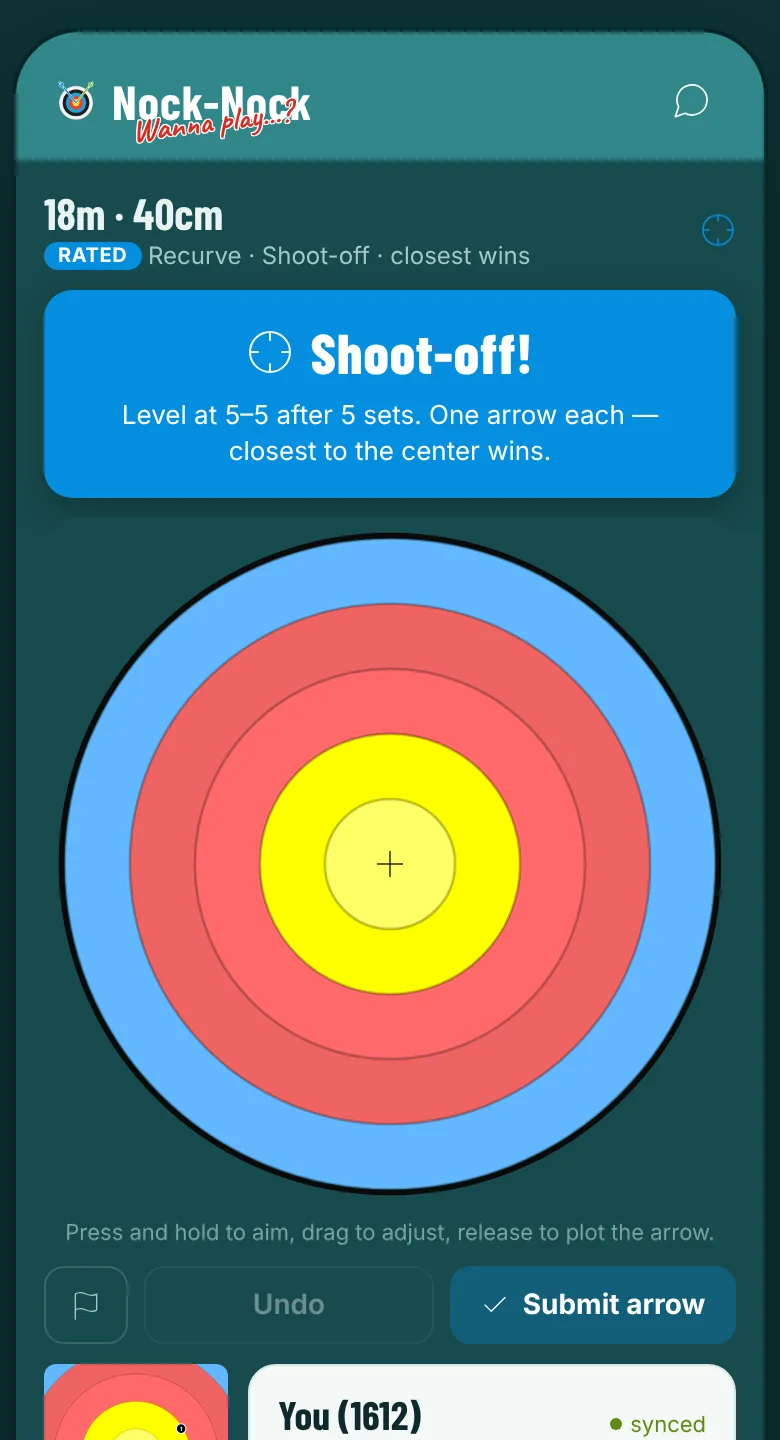
- 1Level after the last set: one arrow each, closest to the center wins.
- 2Plot your one shoot-off arrow.
- 3Submit it. A tie within 1 mm means you both shoot again.
The result
When the match is over you see the result, your rating change and both full scorecards.
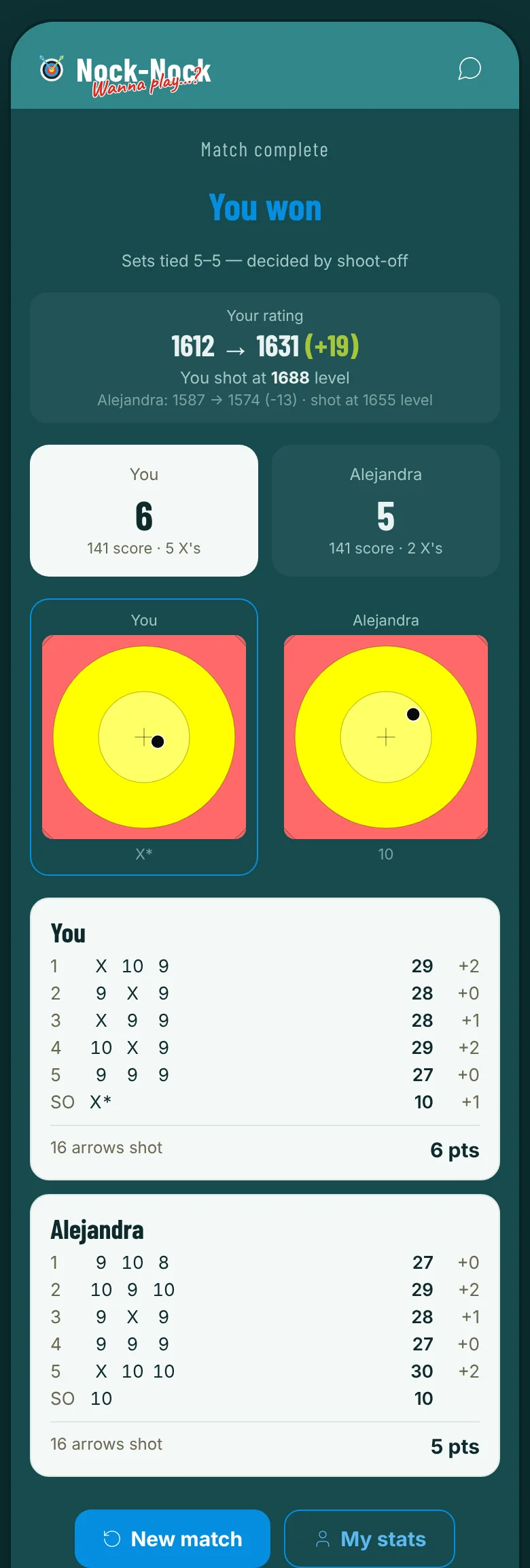
- 1The result, decided by the server.
- 2How it was decided.
- 3Your new rating, and the level your arrows were worth in this match.
- 4Your opponent's rating change and level.
- 5Set points, total score and X count.
- 6The shoot-off arrows side by side, zoomed in. * = won by being closest to the center.
- 7Shoot-off arrows appear as SO on the scorecard.
- 8Back to setup for the next match.
- 9This match is already on your personal stats page.
Screenshots of the app in dark mode with example archers Anna and Alejandra.
Open the app